Studios
A studio is a complete snapshot of your Jack session: parameter configuration, node positions on the canvas, active connections, and CLI client commands. Reload in one click to restore your exact setup.
Concept
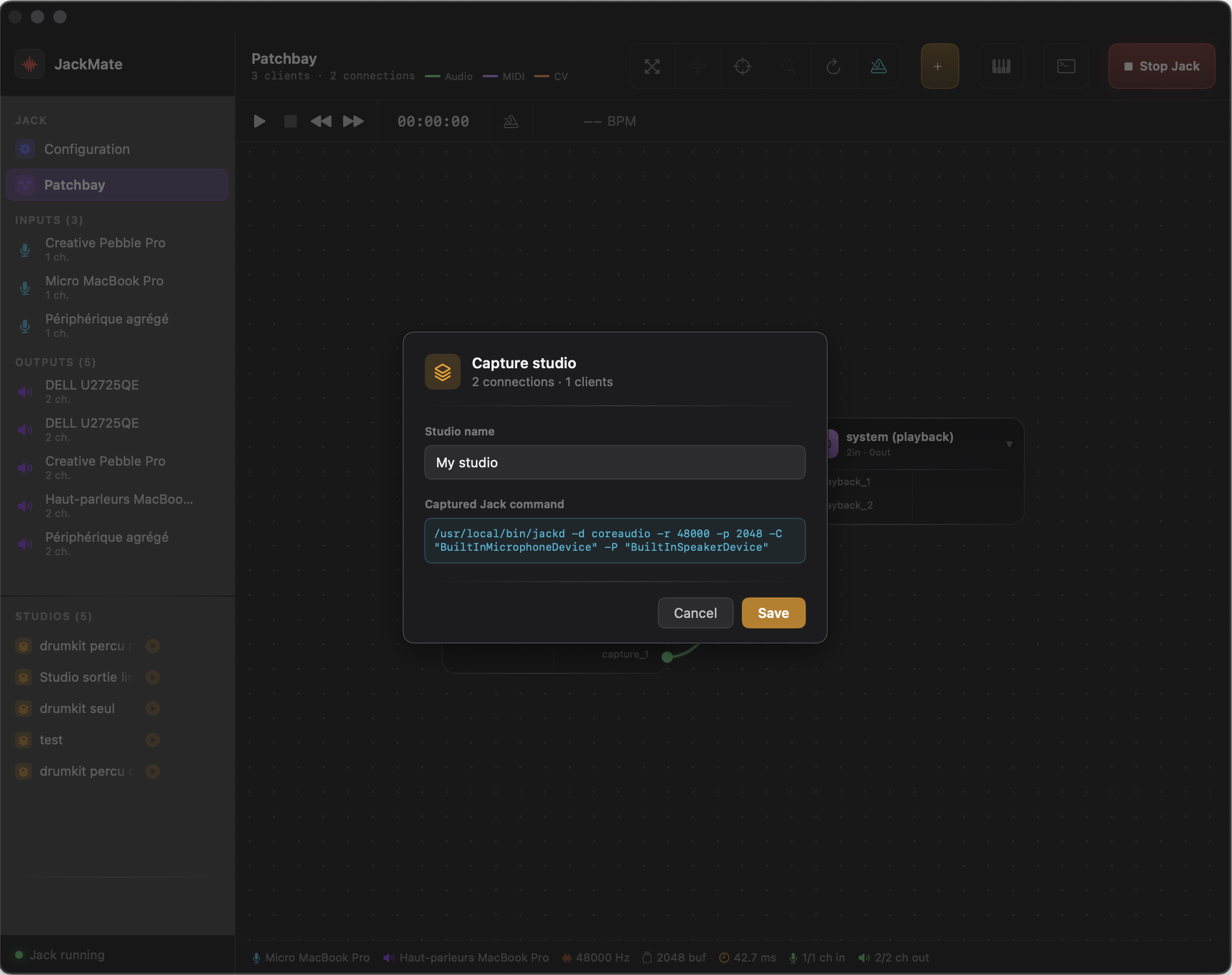
Every time you build a patchbay — connecting your DAW to your interface, routing effects, organising clients — you can save it as a named studio. JackMate will faithfully restore all connections at your next session.
Studios do not save the internal state of Jack applications (loaded plugins, VST parameters…). They restore only the connections between ports and re-launch CLI clients.
Saving a studio
From the Patchbay
Click Save as Studio in the Patchbay toolbar. A window prompts you for a name.
From the sidebar
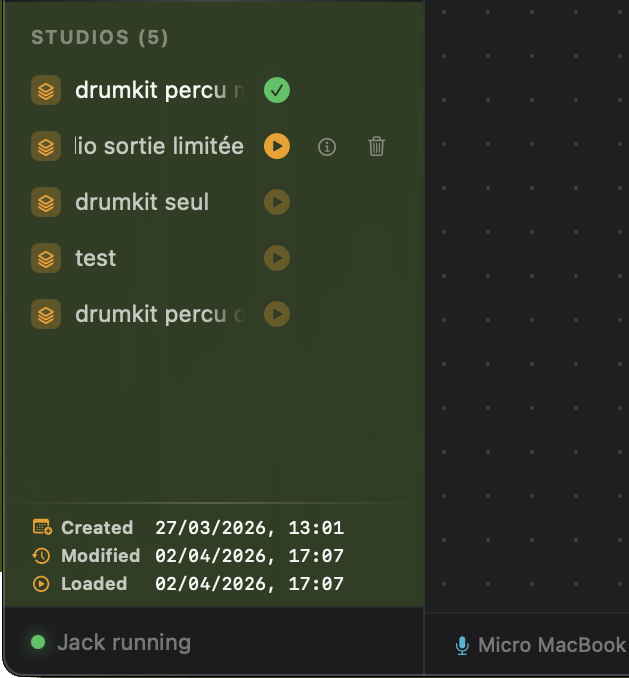
At the bottom of the sidebar, a Studios section is always visible. Enter a name in the text field and click Capture.
Jack must be running to capture a studio. The “Capture” button is disabled if Jack is stopped.
What is saved
| Element | Saved |
|---|---|
| Port connections | ✓ |
| Node positions on canvas | ✓ |
| Collapsed / expanded nodes | ✓ |
| Jack configuration (sample rate, buffer…) | ✓ |
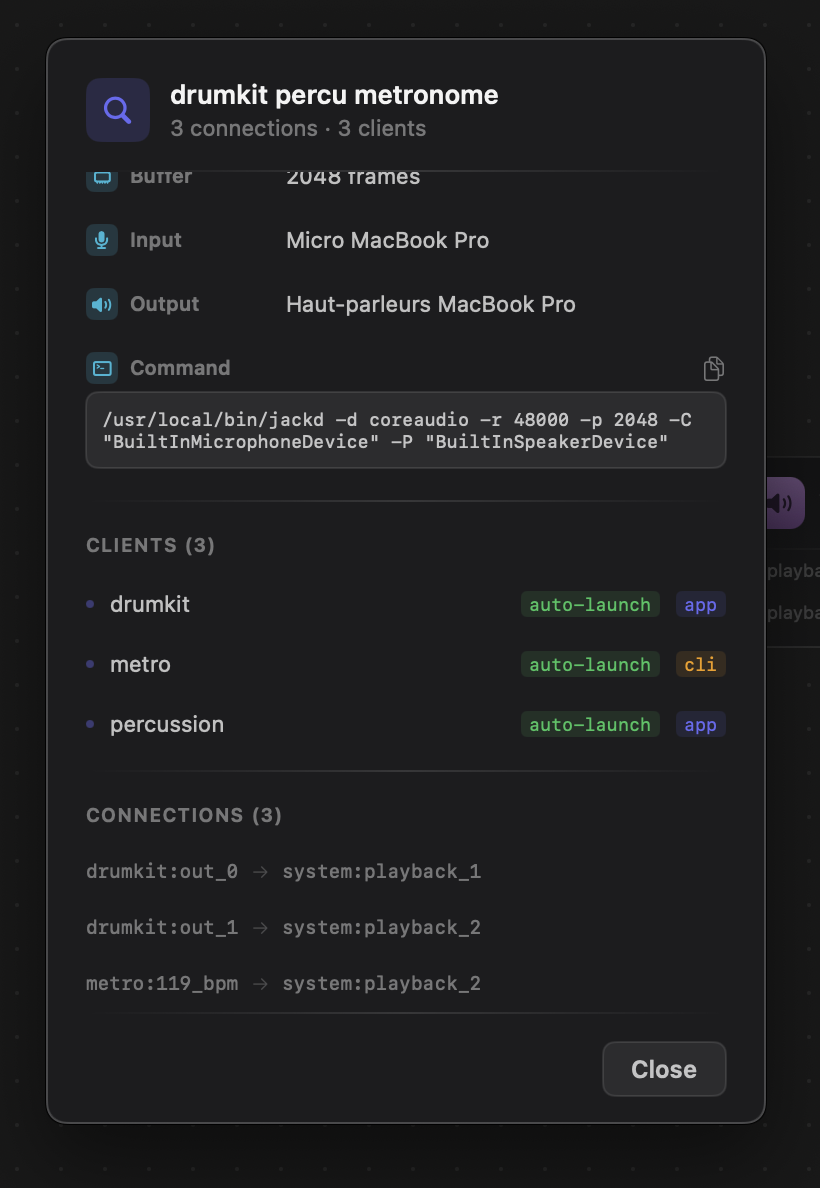
| CLI client launch commands | ✓ |
| Internal state of Jack clients | ✗ |
CLI clients
JackMate detects CLI Jack clients (jack_metro, a2jmidid, and similar) by scanning the process table. Their full launch command is saved in the studio JSON and automatically re-launched when the studio is loaded.
Loading a studio
Smart Jack restart
JackMate performs a full comparison of the Jack command (all parameters, options, devices) before deciding to restart:
| Situation | Behaviour |
|---|---|
| Same Jack config already running | No restart — connections restored immediately |
| Different config or external Jack | Jack stopped, restarted with saved config |
| Jack stopped | Jack started with saved config |
A 1.5 s delay between stop and start ensures system resources are properly released.
Load result
| Case | Behaviour |
|---|---|
| All clients present | All connections restored |
| Some clients absent | Available connections restored, missing ones skipped |
| Jack stopped | ▶ button disabled |
If a client is absent at load time (application not running), launch the application then reload the studio — JackMate does not require a restart.
Modification indicator
Once a studio is loaded, the footer shows its name with a modification indicator (orange dot) if the current patchbay diverges from the loaded studio — connection added, removed, or node moved.
Deleting a studio
In the Studios sidebar section, hover over a studio to reveal the trash icon. Click to delete. Deletion is immediate.
Save files
Studios are stored as JSON in JackMate’s Application Support folder:
~/Library/Application Support/JackMate/studios/
  my-studio.json
  live-set.json
These files are human-readable and can be backed up manually or versioned with your project.