Menu Bar
JackMate lives in your menu bar. The icon is always present, even with the window closed — you keep control of Jack without ever switching applications.
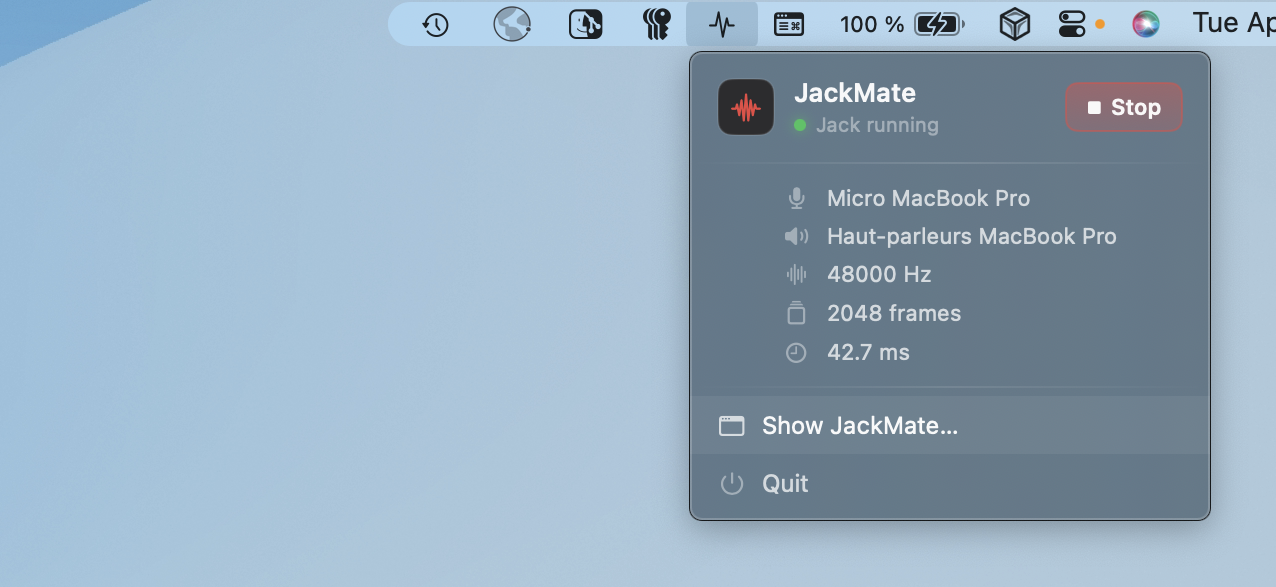
Status icon
The JackMate icon in the menu bar reflects Jack’s state in real time:
| Icon | Meaning |
|---|---|
| Normal icon | Jack stopped |
| Animated / active icon | Jack running |
Click the icon to open the quick control panel.
Quick control panel
Header
The panel header shows: - The JackMate logo - A LED indicator coloured by Jack’s state (green = running, red = stopped) - A Start Jack or Stop Jack button depending on the current state
The button uses the same style as in the main window — same colour, same behaviour.
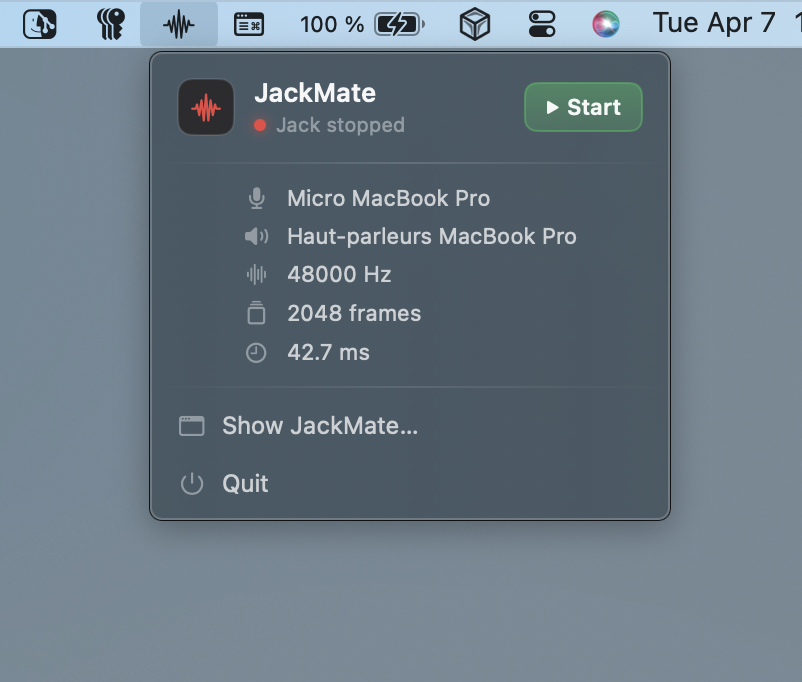
System information
When Jack is running, the panel shows:
| Field | Colour | Description |
|---|---|---|
| Input interface | cyan | Name of the active capture interface |
| Output interface | violet | Name of the active playback interface |
| Sample rate | orange | Sampling frequency in Hz |
| Latency | amber | Calculated theoretical round-trip latency |
These values are updated in real time from the active Jack configuration.
Actions
Two action buttons are available at the bottom of the panel:
| Action | Description |
|---|---|
| Open JackMate | Brings the main window to the front (creates it if needed) |
| Quit | Stops Jack (if running) and quits the application |
Background operation
JackMate is designed to run in the background. Typical workflow:
- Launch JackMate
- Configure and start Jack from the main window
- Close the window — Jack keeps running
- Use the menu bar icon to monitor state or stop Jack
Closing the main window does not quit JackMate. To quit completely, use Quit from the menu bar panel, or ⌘Q from the main window.
Auto-launch at login
JackMate can be set to launch at macOS startup via Login Items in System Settings → General → Login Items.
Once configured, JackMate will be available in your menu bar from the moment you log in — ready to start Jack whenever you need it.