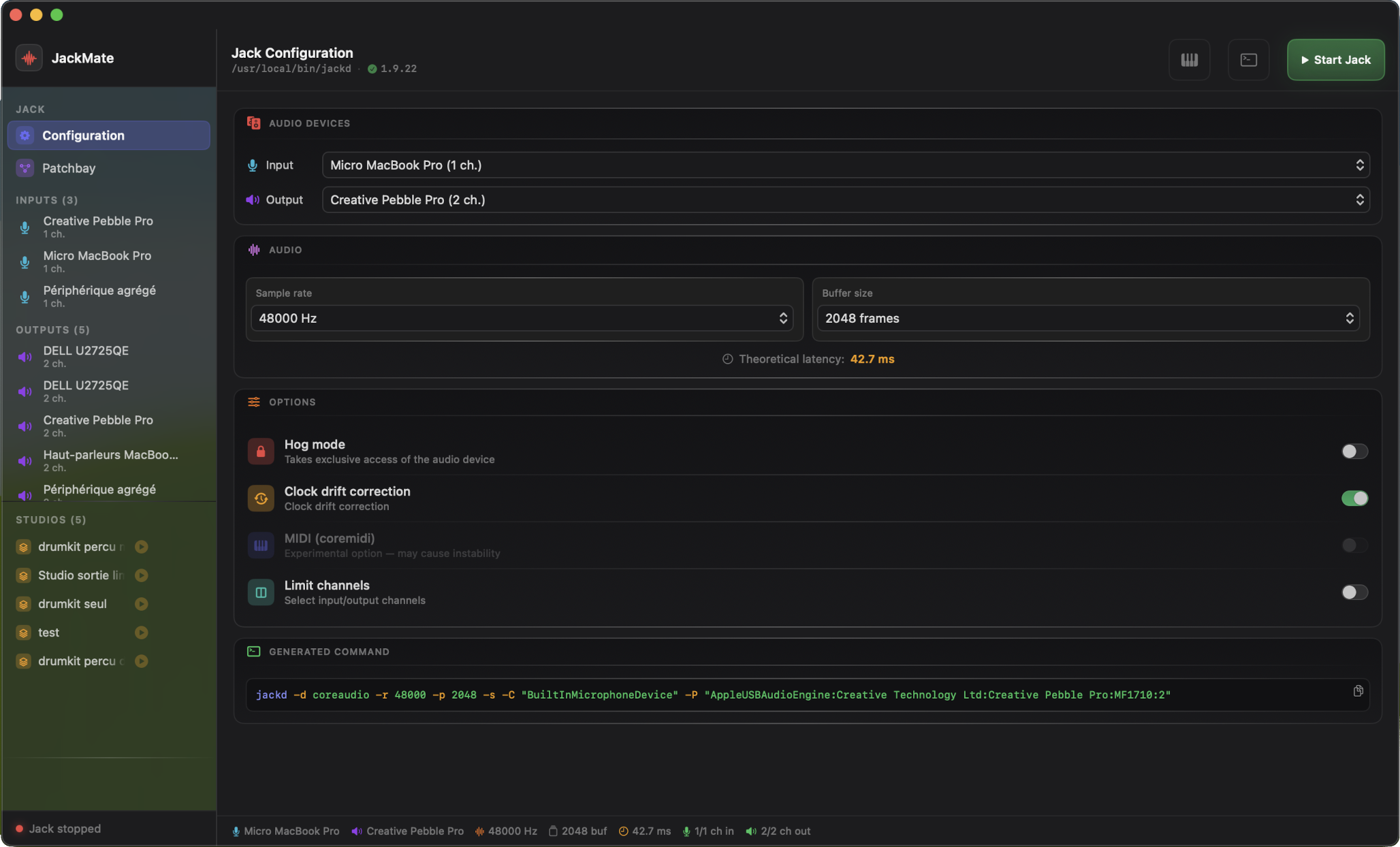
Configuration
The Configuration view is JackMate’s starting point. This is where you define how Jack should start.
Configuration is locked while Jack is running. Stop Jack to change any parameter.
Toolbar
The toolbar at the top of the Configuration view contains:
| Button | Action |
|---|---|
| Audio MIDI Setup | Opens macOS Audio MIDI Setup utility (piano keys icon) |
| Terminal | Opens/closes the Jack log panel |
The Audio MIDI Setup button lets you create aggregate devices, configure clock sync between two interfaces, or inspect available hardware — without leaving JackMate.
Audio Devices
Input
Select the audio interface that will provide inputs to Jack. All available CoreAudio interfaces are listed with their channel count.
Choose “No Input” if you don’t need recording (pure playback music production, for example).
Output
Select the audio interface used for playback. Input and output can be different interfaces — Jack handles clock sync between them.
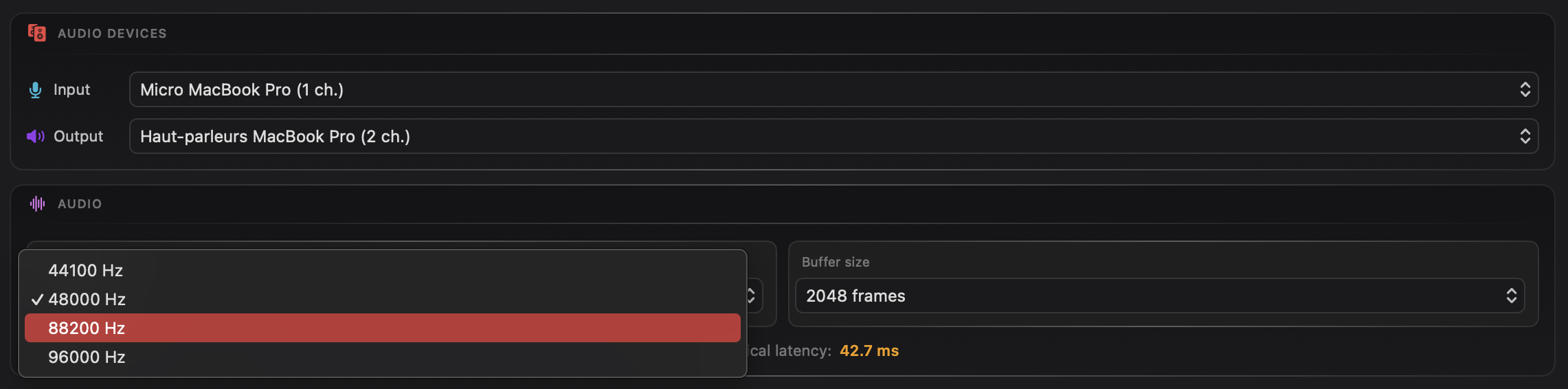
Compatible sample rates. JackMate automatically computes sample rates supported by both interfaces simultaneously. Only compatible frequencies are shown in the selector.
Aggregate devices
If you select an aggregate device (created in Audio MIDI Setup) as input or output, JackMate automatically forces the other side to the same device. Aggregate devices manage their own clock — using two separate sides makes no sense here.
Clock synchronisation. When an aggregate device is selected, JackMate shows an alert recommending that you configure clock sync in Audio MIDI Setup before starting Jack. Skip this only if your aggregate is already correctly set up.
Channel selection
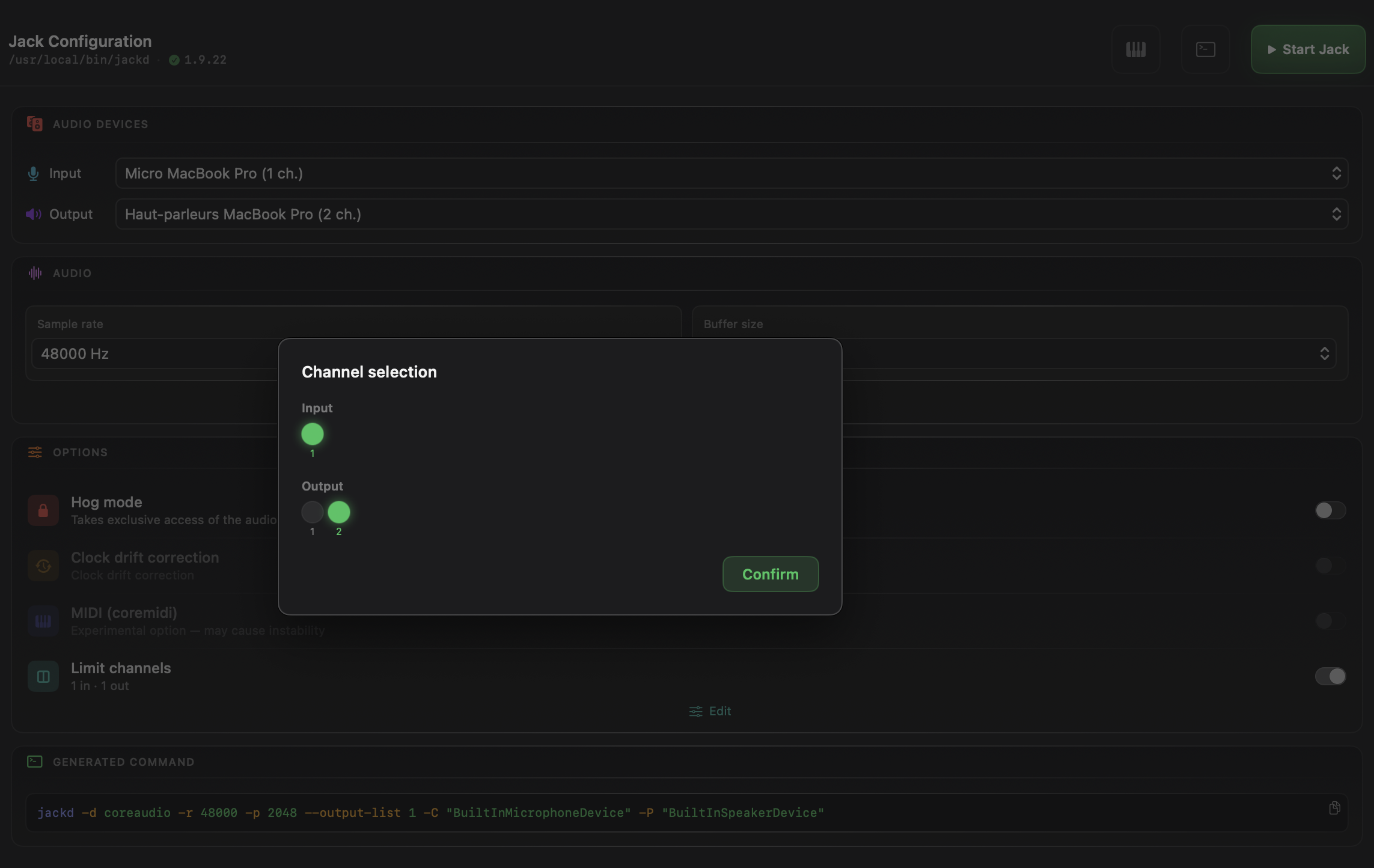
By default, Jack exposes all channels of the selected interface. You can restrict active channels using the LED picker:
- Enable the Channels toggle in the Devices section
- A sheet appears with a row of numbered LEDs (one per channel)
- Click a LED to toggle it — active channels glow green
- At least one channel must remain active (automatic constraint)
- The footer permanently shows the active selection (
N/Nmax ch)
Aggregate configuration. Channel selection is automatically disabled and reset when the combination of input and output devices will cause Jack to create an internal aggregate. In that case, the LED picker is hidden and the toggle is greyed out — Jack handles channel routing internally for aggregate setups.
Audio
Sample Rate
Sampling frequency in Hz. Common values:
| Value | Typical use |
|---|---|
| 44,100 Hz | CD, classical music production |
| 48,000 Hz | Video audio, broadcast |
| 88,200 / 96,000 Hz | High resolution, mastering |
Buffer Size
Number of frames per processing cycle. This directly impacts latency:
| Buffer | Theoretical latency (48 kHz) | Use case |
|---|---|---|
| 64 frames | ~1.3 ms | Live playing, ultra-low latency |
| 128 frames | ~2.7 ms | Standard recording |
| 256 frames | ~5.3 ms | Monitoring, mixing |
| 512 frames | ~10.7 ms | Production, heavy plugins |
Theoretical latency
JackMate computes and displays the theoretical round-trip latency in real time (2 × buffer / sample_rate). Use this value to estimate the playability of a setup.
Options
Hog Mode
When enabled, Jack monopolises the audio interface — no other application can use it simultaneously. Guarantees maximum stability and performance.
In hog mode, macOS system output (notifications, other apps) is cut off. Use in dedicated production contexts only.
Clock Drift Correction
Corrects clock drift between two audio interfaces used simultaneously. Enable if you are using different devices for input and output.
Clock drift correction is automatically disabled (and forced off) when input and output are the same physical hardware (same UID, or both built-in devices). In that case the toggle is greyed out.
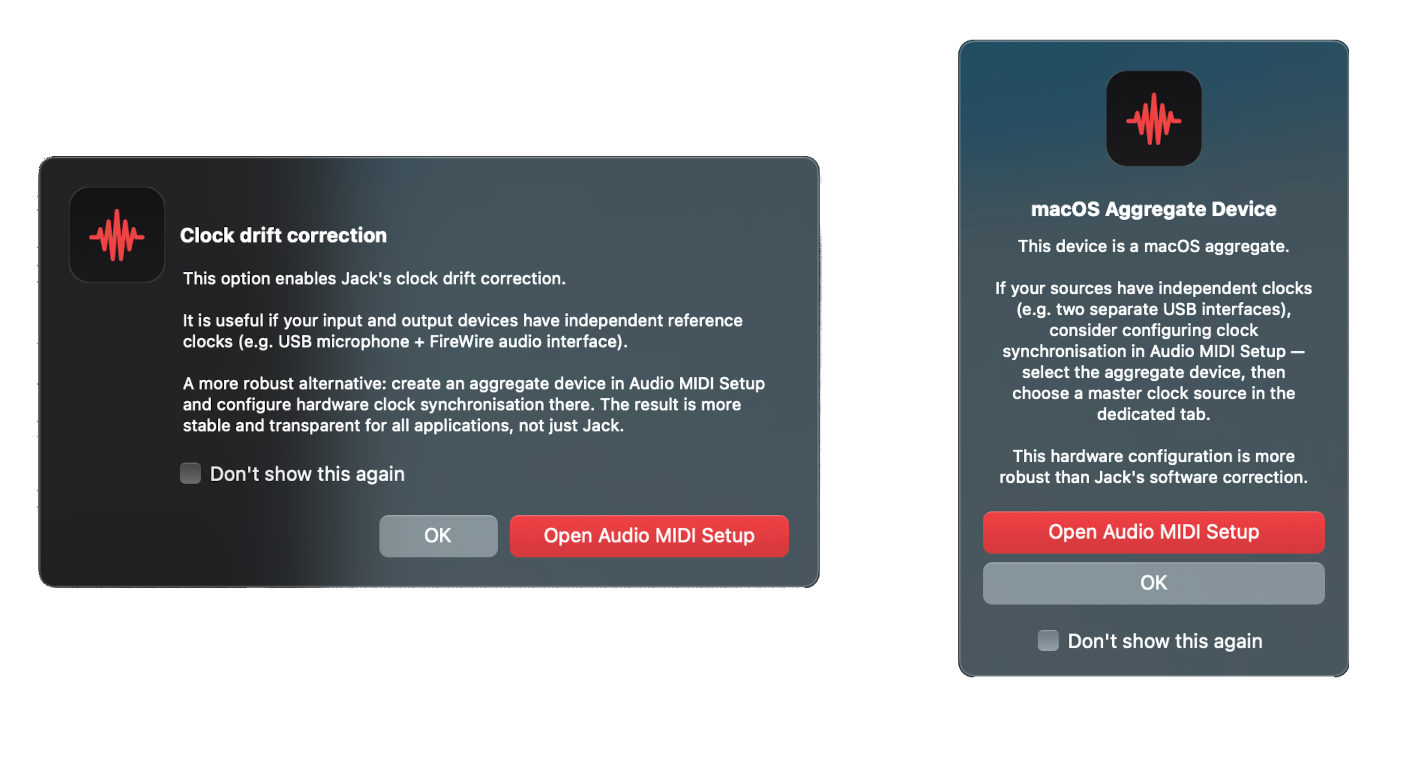
When two distinct physical devices are selected and Clock Drift Correction is off, the toggle row displays a pulsing amber border and a ⓘ button. This draws attention to the fact that clock sync may be needed. The animation stops as soon as Jack is running.

Clicking ⓘ opens an explanatory sheet describing the options (software correction vs. macOS aggregate device) and provides a direct link to Audio MIDI Setup.
JackMate also shows informational alerts in two situations when you interact with this toggle:
When activating Clock Drift Correction with non-aggregate devices — JackMate suggests using a macOS aggregate device instead, which handles clocking at the OS level and is generally more reliable than Jack’s software correction.
When selecting an aggregate device — JackMate reminds you to configure clock synchronisation in Audio MIDI Setup before starting Jack. Using an aggregate device without proper clock sync configured can cause xruns or instability.
Both alerts include a “Don’t show again” checkbox so they only appear once.
MIDI (coremidi)
Enables MIDI via CoreMIDI support. Jack then exposes the MIDI ports of connected interfaces as Jack clients, making them routable in the patchbay.
Experimental option. The MIDI toggle is currently disabled due to observed instabilities. It will be re-enabled in a future version.
Jack Version
The Configuration header displays a version badge indicating the state of your Jack installation:
| Badge | Meaning |
|---|---|
✓ 1.9.22 (green) |
Up to date |
↑ 1.9.22 (amber, clickable) |
Update available on GitHub |
| (absent) | Jack not installed or version not detectable |
JackMate compares the installed version (jackd --version) against the latest release on jackaudio/jack2. The comparison is cached for 24 hours — no network call on repeated JackMate launches the same day. If no network is available, the badge is hidden.
Automatic Updates
JackMate checks for new releases at launch (against GitHub releases, 24h cache — silent if no network). If a newer version is available:
- An “Update available: vX.Y.Z” row appears in the menu bar (greyed out while Jack is running)
- A notification can be triggered from the Configuration header
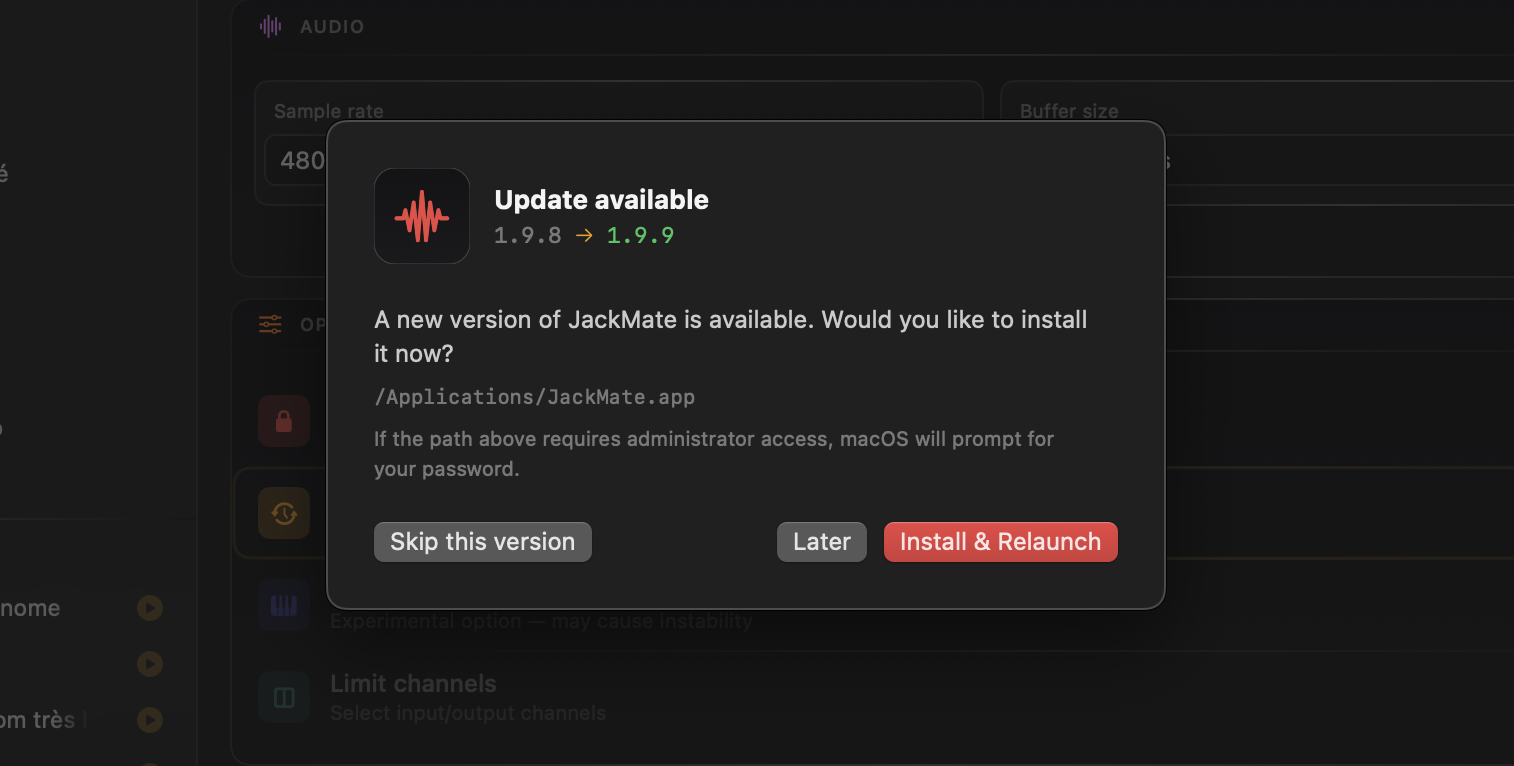
Clicking either opens the update sheet, which shows the installed and available versions, the current install path, and an admin password notice (required to replace the app bundle).
JackMate then downloads the DMG, mounts it, and replaces the app bundle atomically at its current location. The app relaunches automatically after installation — no manual download or drag-and-drop required.
The update button in the menu bar is disabled while Jack is running. Stop Jack first if you want to install an update.
Generated Command
The Generated Command section shows the jackd command JackMate will execute, updated in real time as you adjust parameters. Useful for debugging or copying into a script.

jackd command generated in real time from current parametersA discrete copy button (with animated checkmark feedback) lets you copy the command to the clipboard.
Starting Jack
Click Start Jack in the header. JackMate:
- Saves the configuration
- Launches
jackdwith the defined parameters - Automatically switches to the Patchbay view
- Displays the status in the sidebar and the menu bar
To stop Jack, click Stop Jack. Active connections are terminated.
Aggregate warning sheet
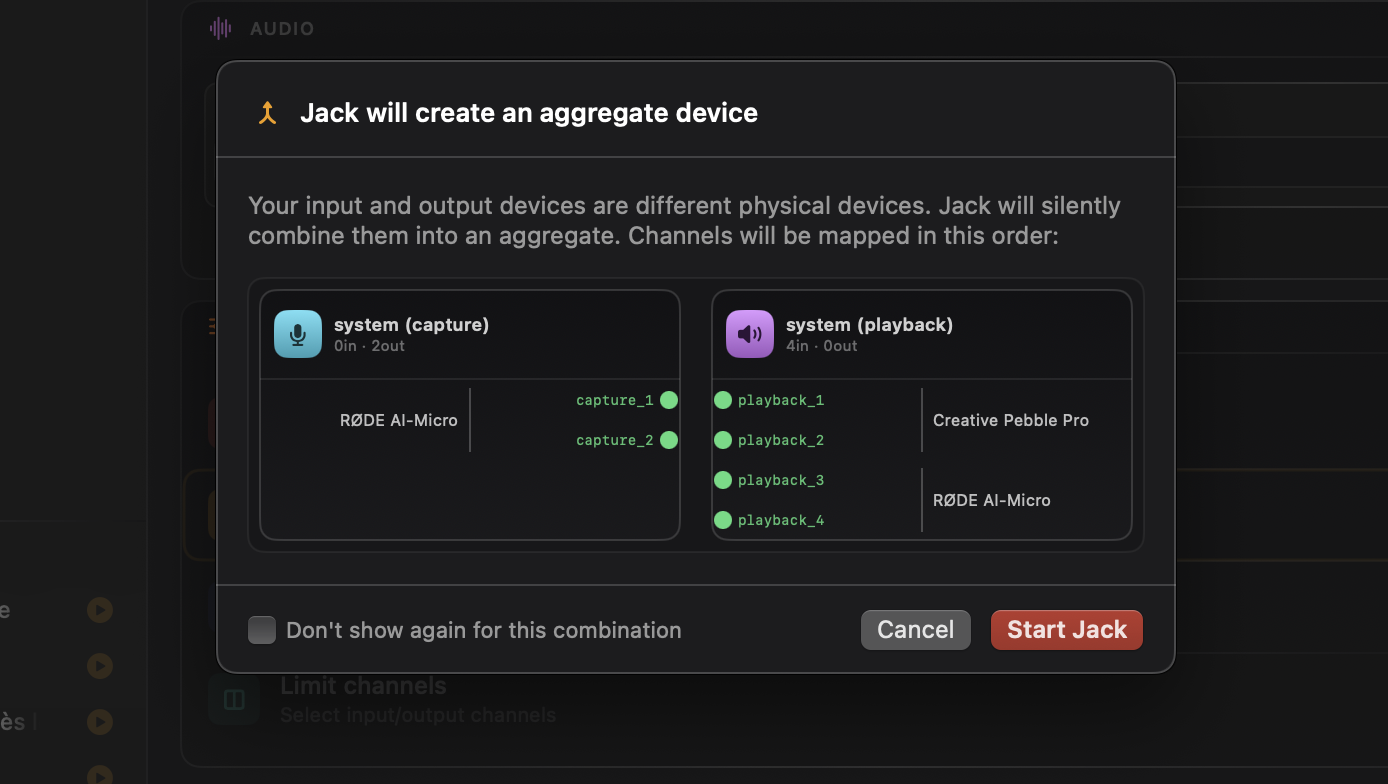
When the selected device combination will cause Jack to silently create an internal aggregate, JackMate shows a warning sheet before starting Jack. The sheet displays a patchbay-accurate preview of the resulting system (capture) and system (playback) cards — including per-device bracket bars and channel counts — so you can verify the layout matches your expectations before committing.
Jack only starts after you confirm. A “Don’t show again for this combination” option suppresses the warning for that specific device pair.
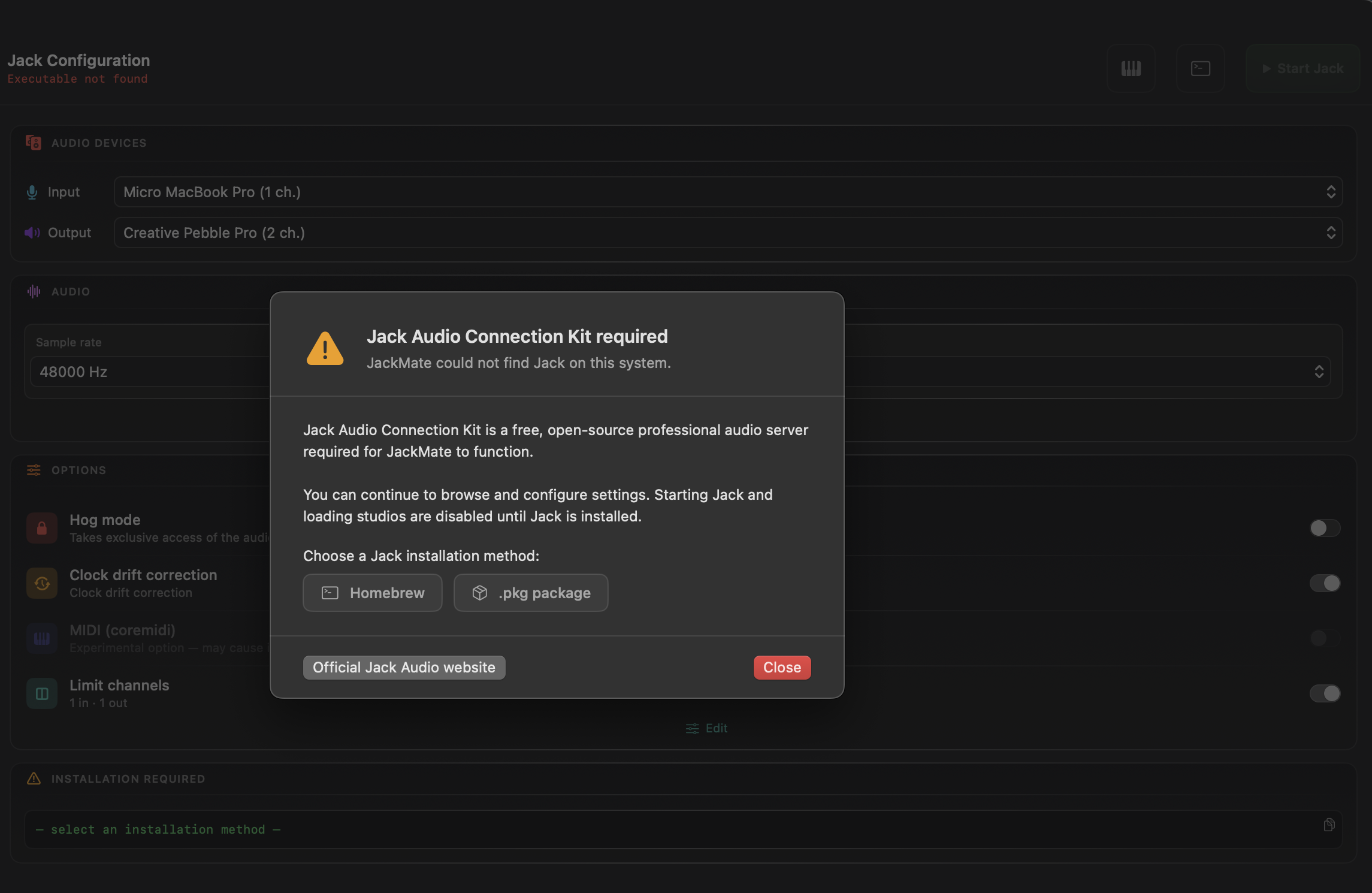
Jack not installed
If Jack is not found at launch, JackMate shows an installation guide modal with the appropriate command (Homebrew or .pkg download), coloured glow highlighting the command block. The Start Jack button is disabled until Jack is installed.