Examples — PDF configurations
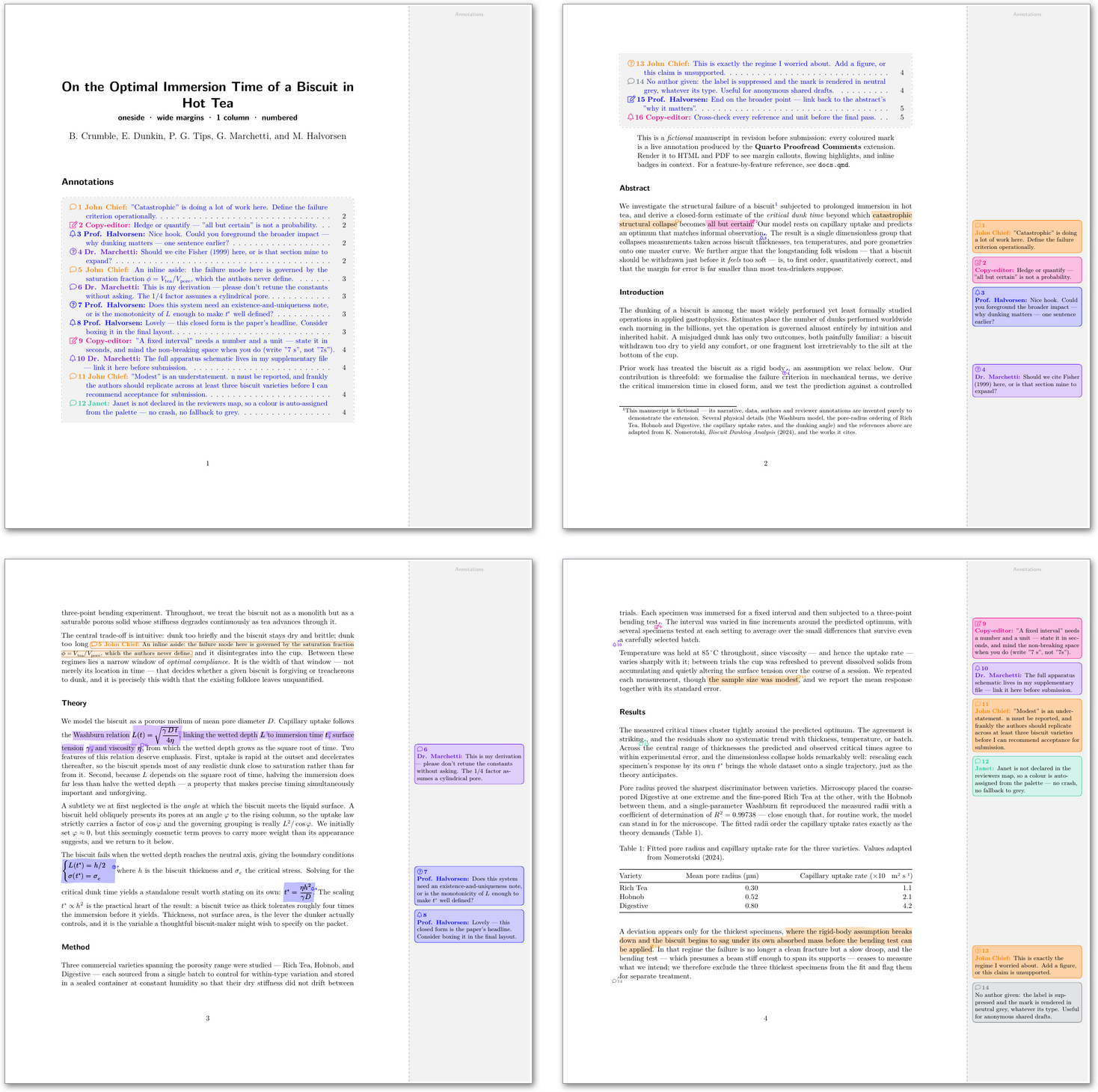
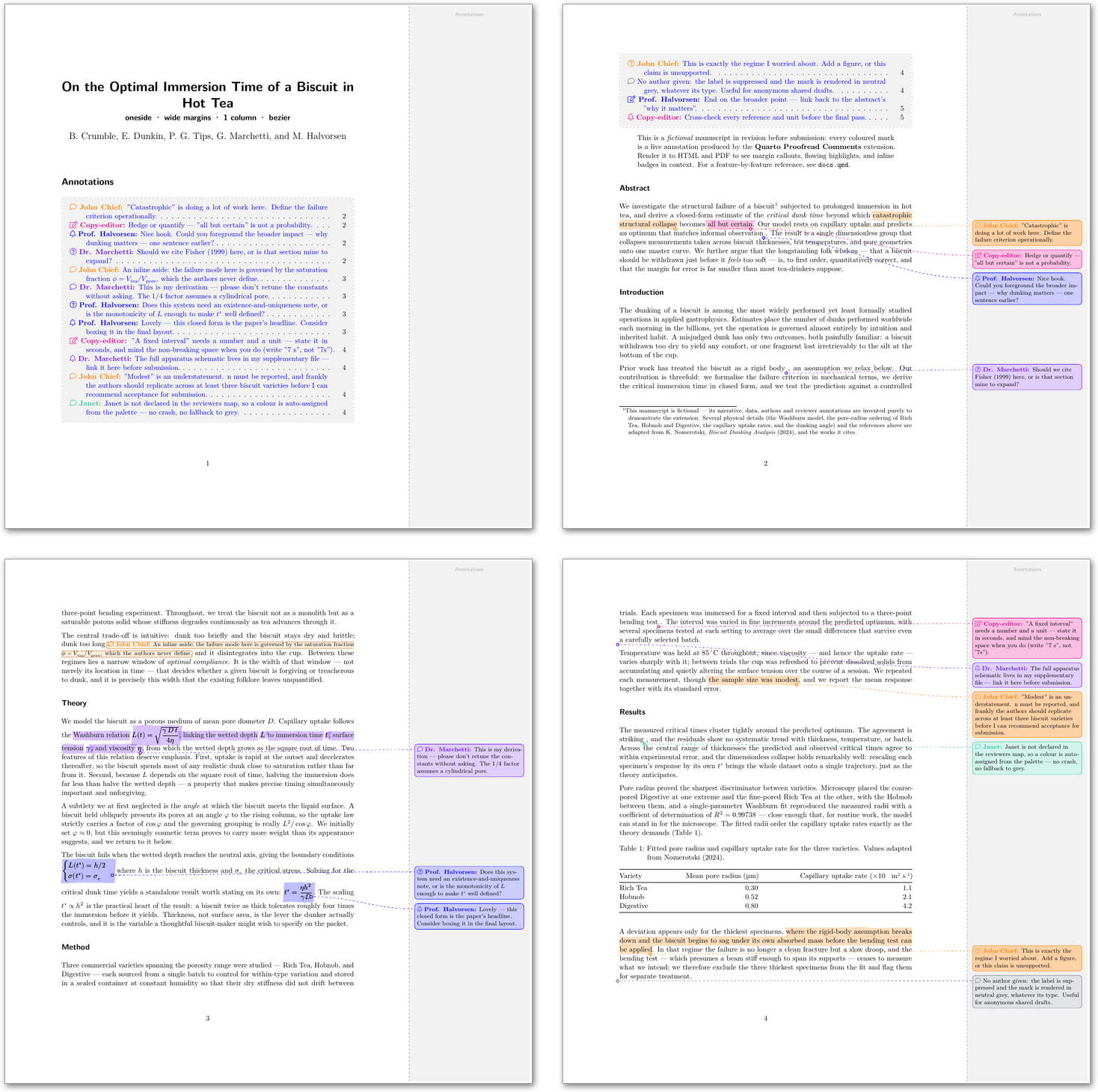
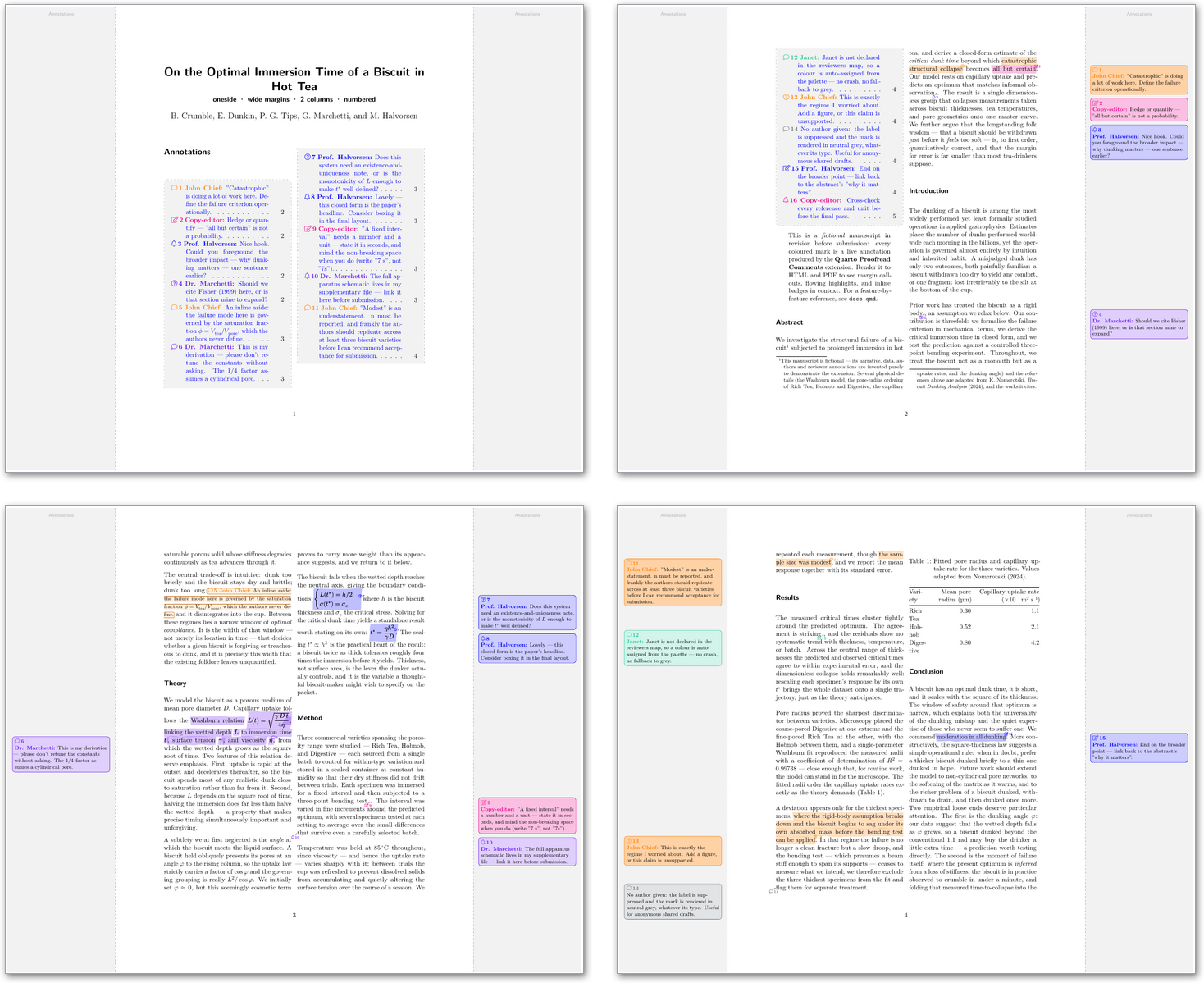
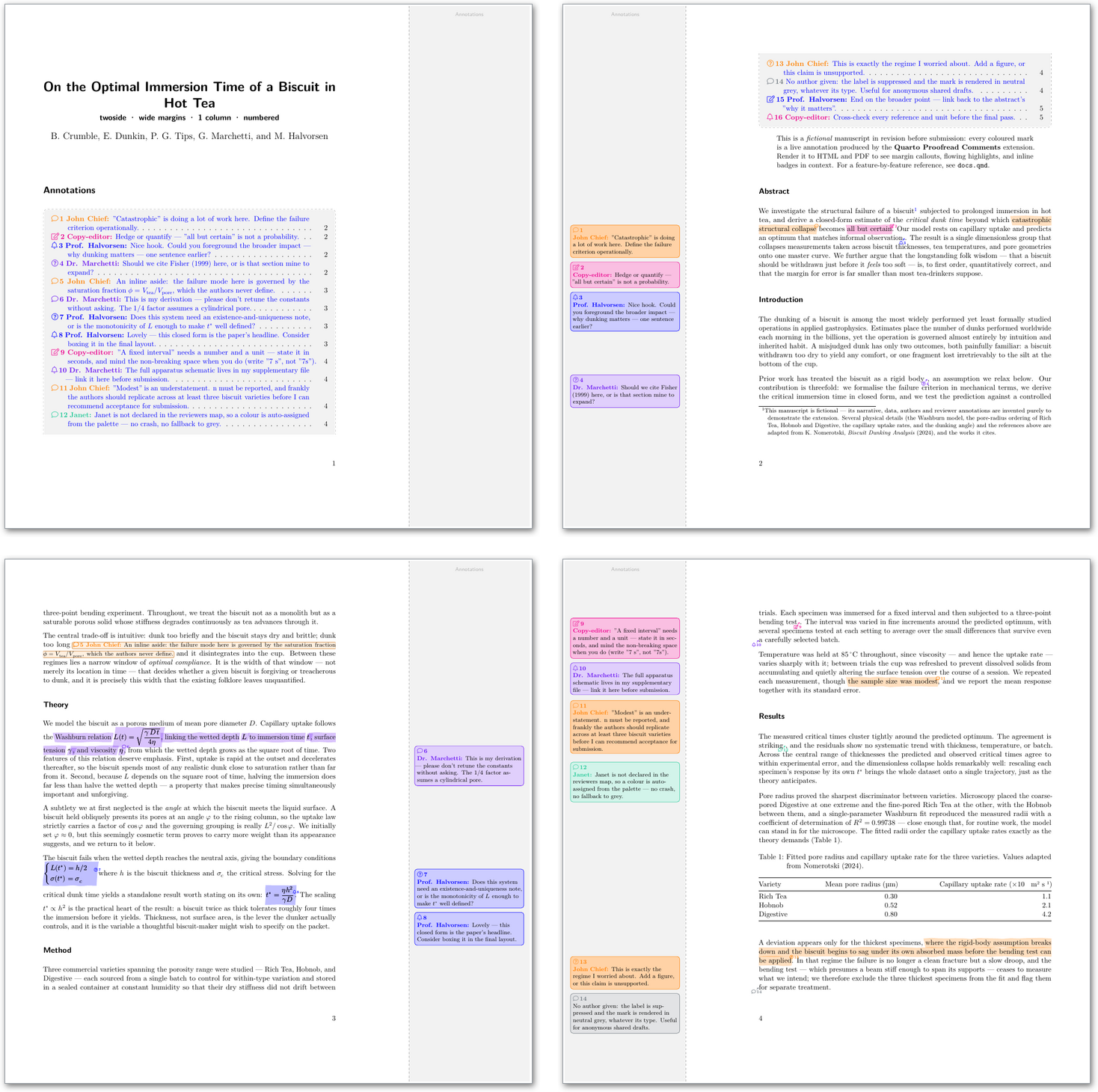
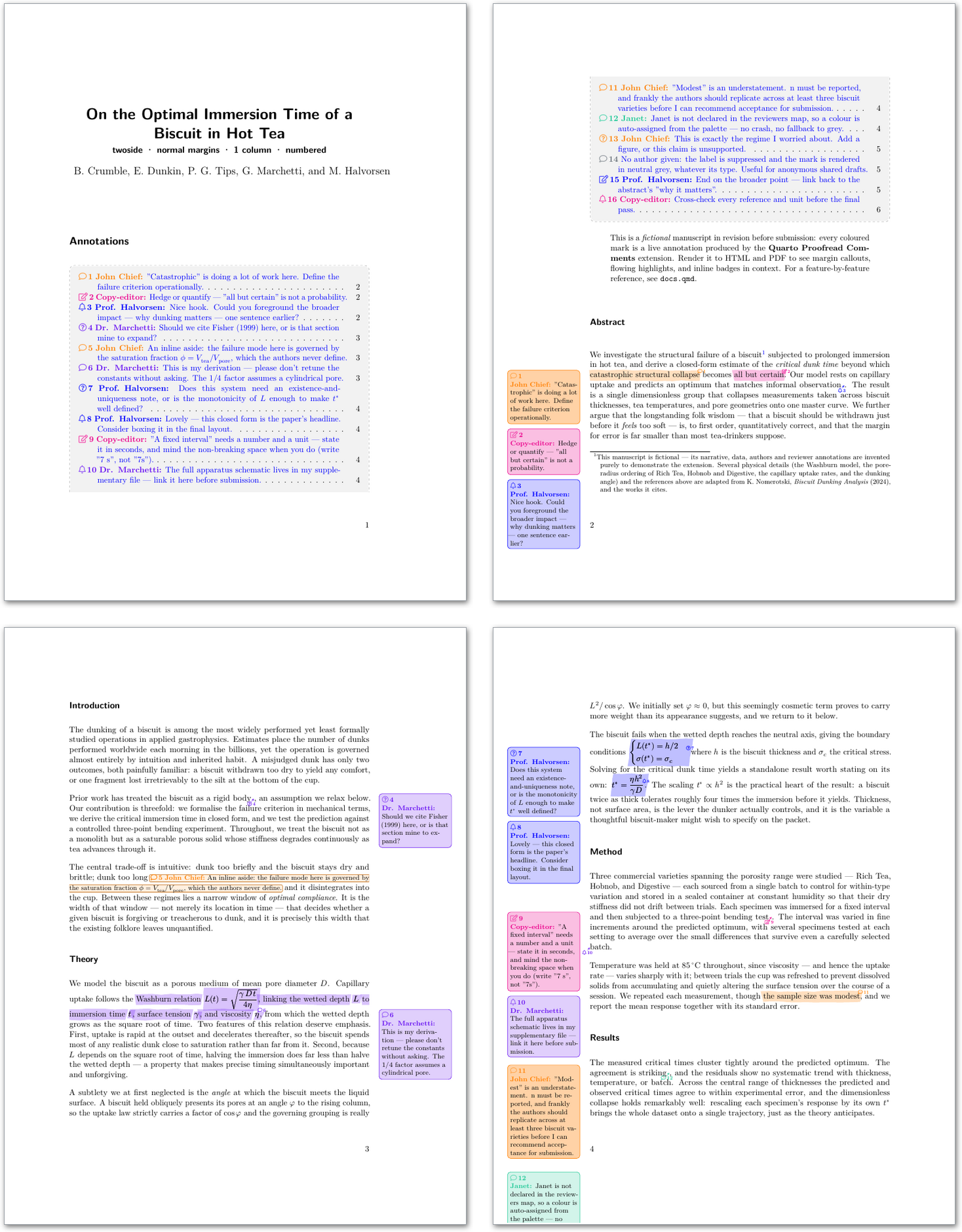
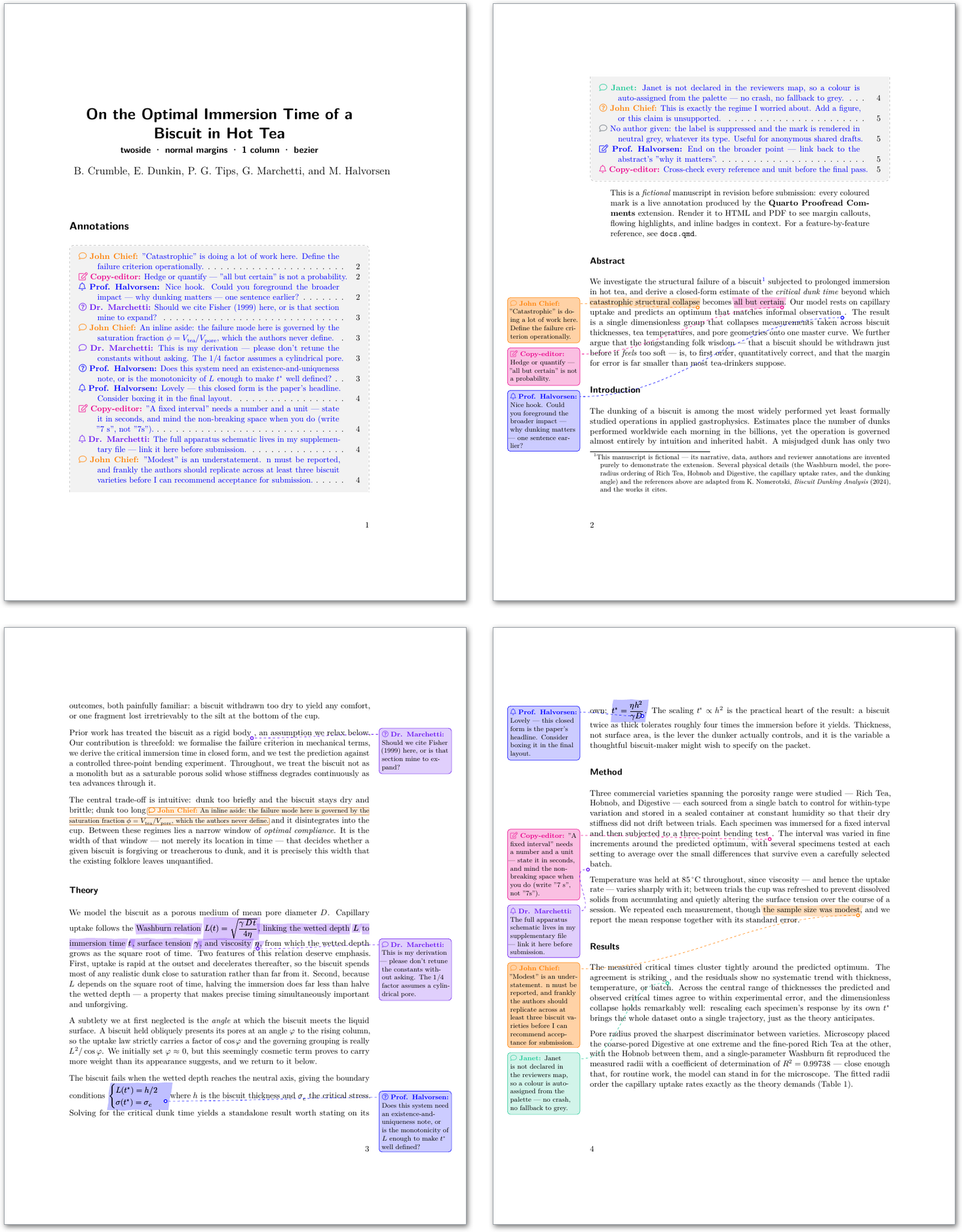
The same manuscript (example.qmd, pulled from main) rendered under a few representative PDF configurations, so you can see how the layout options behave. For the interactive version with hover and links, see the live HTML demo.
Choosing your options
- The defaults are the safest combination — start here.
connector: numberedwithwide_margins: truehandles one- and two-sided, one- and two-column, and page breaks robustly. - Avoid
connector: bezierin two-column layouts. The curved connector can overflow or fail when a margin note floats across a column or page boundary; the numbered marker stays correct there. - Use
wide_margins: falseonly with few, short annotations. A normal-width margin quickly cramps notes — long reviewer names or several stacked notes will not fit. (Wide margins reserve a dedicated, roomy annotation zone.) - For long comment text, use the inline form (
inline=true) instead of a margin note, so the text flows in the body rather than overflowing a narrow margin.